
Home > AvePoint Cloud Governance 管理センターについて > AvePoint Cloud Governance Teams アプリ (MyHub)
この記事をダウンロードAvePoint Cloud Governance Teams アプリ (MyHub)
AvePoint Cloud Governance は Microsoft Teams アプリ ストアでMyHub アプリケーションを提供しています。MyHub アプリは Cloud Governance の本番環境に利用できます。
MyHub は、Teams インターフェイス内でタスク通知の取得、タスクの管理、新しい要求の送信、所有しているワークスペースの表示を実行できる個人用アプリです。エンド ユーザーが Teams アプリ ストアで MyHub を検索して、Teams クライアントに追加することができます。管理者は、アプリを Teams のアプリ バーにピン留めすることができます。これにより、エンド ユーザーがアプリを手動で追加する必要がなくなります。
MyHub が初めてビジネス ユーザーの Teams クライアントに追加されると、MyHub からの通知が自動的に送信されます。以前にアプリを追加した既存ユーザーに対して、通知を手動でオンにする場合、PowerShell コマンドを使用して各ユーザーの通知をオンにすることができます。2 番目のコマンドをループすると、Microsoft からのイベントがトリガーされ、各ユーザーのチャット ID が取得され、各ユーザーに対して通知が自動的にオンにすることができます。詳細については、以下の説明を参照してください。
-
以下の HTTP GET リクエストを使用して、MyHub アプリ用の teamsAppInstallationId を取得します。
-
上記から取得した teamsAppInstallationId を使用し、次の要求を使用して特定ユーザーの通知を有効にします (permission—TeamsAppInstallation.ReadWriteSelfForUser.All):
Teams イベントがこの要求でトリガーされ、MyHub サーバーはこのプロセス中にユーザーのチャット ID を取得して、ユーザーの通知を自動的に有効化します。
MyHub は以下の言語に対応します。
| Microsoft Teams クライアント言語 | MyHub 言語 |
|---|---|
| Deutsch (Deutschland) Deutsch (Liechtenstein) Deutsch (Luxemburg) Deutsch (Schweiz) Deutsch (Österreich) | Deutsch (Deutschland) |
| Español (Argentina) Español (Bolivia) Español (Chile) Español (Colombia) Español (Costa Rica) Español (Ecuador) Español (El Salvador) Español (España, alfabetización internacional) Español (Estados Unidos) Español (Guatemala) Español (Honduras) Español (México) Español (Nicaragua) Español (Panamá) Español (Paraguay) Español (Perú) Español (Puerto Rico) Español (Republica Bolivariana de Venezuela) Español (República Dominicana) Español (Uruguay) | Español (España, alfabetización internacional) |
| Français (Belgique) Français (Canada) Français (France) Français (Luxembourg) Français (Principauté de Monaco) Français (Suisse) | Français (France) |
| Italiano (Italia) Italiano (Svizzera) | Italiano (Italia) |
| Português (Brasil) Português (Portugal) | Português (Brasil) |
| その他 | English (United States) |
| 日本語 (日本) | 日本語 (日本) |
| 中文(中国) 中文(新加坡) | 简体中文(中国) |
| 한국어 (대한민국) | 한국어 (대한민국) |
| Nederlands (België) Nederlands (Nederland) | Nederlands (Nederland) |
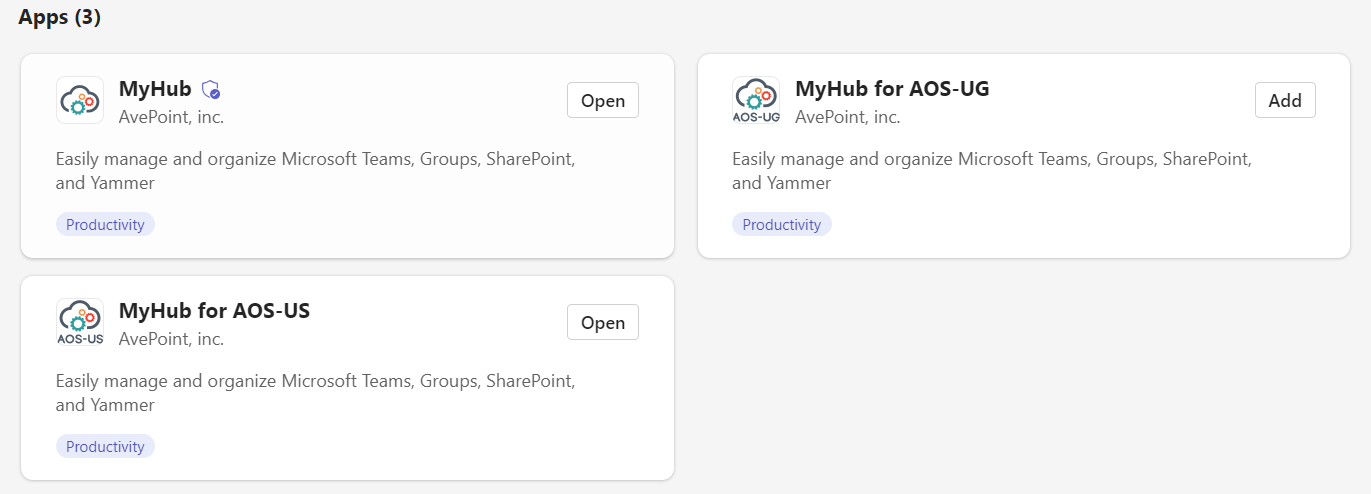
テナントが Cloud Governance のインサイダー環境を使用している場合、MyHub アプリをテナントのアプリ カタログに手動で公開する必要があります。
準備
エンド ユーザーが MyHub アプリを Teams クライアントに正常に追加できるようにするためには、Teams 管理センターで以下の構成が設定されていることを確認してください。
-
Teams のアプリ > アプリの管理 > 組織全体のアプリ設定: サードパーティ製アプリ セクションで、サードパーティ製アプリ オプションがオンになっていることを確認してください。
-
Teams のアプリ > アプリの管理: MyHub アプリを選択して、その後、アプリの割り当て パネルでアプリをインストールできるユーザーを管理します。
-
メッセージング ポリシー > グローバル (組織全体の既定値) ポリシー: チャット オプションがオンになっていることを確認してください。
Teams アプリ ナビゲーション バーへのアプリのピン留め
Microsoft 365 グローバル管理者または Teams サービス管理者は、MyHub アプリを Teams のアプリ バーにピン留めするためのアプリ セットアップ ポリシーを構成することができます。アプリをアプリ バーにピン留めすると、アプリは、アプリ セットアップ ポリシーが割り当てられているすべてのユーザーの Teams クライアントに追加されます。
-
グローバル管理者または Teams サービス管理者の資格情報を使用して Microsoft Teams 管理センターにサインインします。
-
Teams のアプリ > セットアップ ポリシー に移動します。
-
テナント内のすべてのユーザーに向けて、アプリのピン留めを実行する場合は、グローバル (組織全体の既定値) ポリシーを編集します。特定のユーザーに向けて、アプリのピン留めを実行する場合は、カスタム ポリシーを作成して一連のユーザーに割り当てます。ユーザーにカスタム ポリシーを割り当てる方法については、ユーザーにカスタム アプリ セットアップ ポリシーを割り当てる を参照してください。
-
ピン留めされたアプリ セクションで、以下の手順を実行します。
-
[アプリを追加] をクリックします。
-
ピン留めされたアプリを追加 パネルで、検索ボックスに MyHub を入力し、MyHub アプリを選択して、[追加] をクリックします。
-
パネルの下部にある [追加] をクリックします。
-
-
アプリ バーにピン留めされたアプリの順序を設定することもできます。アプリを選択し、[上に移動] または [下に移動] をクリックします。
-
セットアップ ポリシーを保存します。
グローバル (組織全体の既定値) ポリシーの編集・ポリシーの割り当てを実行した後、変更は 24 時間以内に反映されます。
アプリのカスタマイズ
Microsoft 365 グローバル管理者または Teams サービス管理者は、Teams 管理センターでアプリのアイコン、名前、説明をカスタマイズすることができます。
アプリのカスタマイズの詳細については、Microsoft Teams でのアプリのカスタマイズ を参照してください。
-
Teams のアプリ > アプリを管理 に移動します。
-
MyHub アプリを検索します。
-
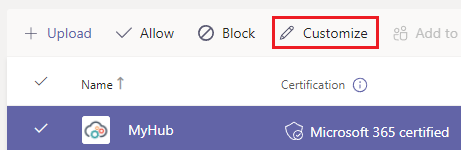
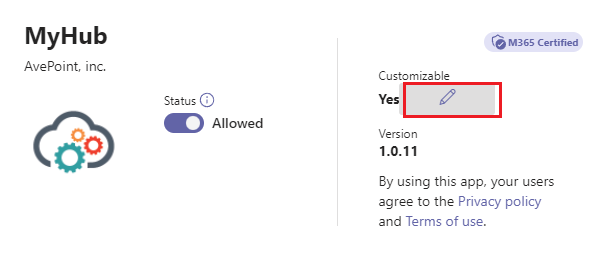
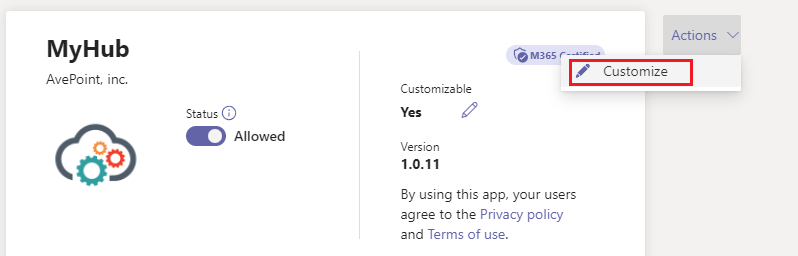
以下からアプリをカスタマイズする方法を選択します。
-
アプリの横にあるチェック マークを選択して、[カスタマイズ] をクリックします。
-
アプリ名を選択して、カスタマイズ可能 列内の編集アイコンをクリックします。
-
アプリ名を選択して、アクション ドロップダウン リストから カスタマイズ を選択します。
-
-
カスタマイズ ペインが右側に表示されます。このペインで以下の詳細をカスタマイズすることができます。
-
短い名前
-
簡単な説明
-
詳細な説明
-
色/アイコン
-
アウトライン アイコン
-
アクセント カラー
-
-
アプリのカスタマイズを完了した後、[適用] をクリックします。
-
[公開] をクリックしてカスタマイズされたアプリを公開します。
Copilot for Microsoft 365 との統合
Cloud Governance ポータル (MyHub) は Copilot for Microsoft 365 との統合を提供しています。これにより、ビジネス ユーザーは Copilot for Microsoft 365 を使用して、自分の MyHub ワークスペース・タスク・サービス要求に関する関連情報を検索することができます。ビジネス ユーザーの統合およびサンプル プロンプトの有効方法については、MyHub ユーザー ガイドの Copilot for Microsoft 365 との統合 を参照してください。
この機能を使用するには、ビジネス ユーザーが利用可能な Copilot for Microsoft 365 サブスクリプションを持っていることを確認してください。