
Home > AvePoint Insights について
この記事をダウンロードAvePoint Insights について
AvePoint Insights は、テナント全体の危険データの一元的なビューを提供し、Microsoft 365 または Google 全体のアクセス、秘密度、アクティビティのデータを集約します。関連規制やセキュリティ ポリシーに沿ったリスクの定義方法に基づいて問題に優先順位を付けます。
シングル サインオン
シングル サインオンがサポートされました。これにより、AvePoint Online Services へのサインインが検出された場合、ユーザー資格情報を提供せずに直接 URL で AvePoint Insights インターフェイスにアクセスすることができます。
対応するブラウザー
対応しているブラウザー バージョンは以下の表のとおりです。
| ブラウザー | バージョン |
|---|---|
| Internet Explorer | IE 11* |
| Google Chrome | 最新バージョン |
| Mozilla Firefox | 最新バージョン |
| Microsoft Edge * | 最新バージョン |
| Chromium ベースの Microsoft Edge | 最新バージョン |
Microsoft Edge Legacy および IE 11 へのサポート終了に関する お知らせ (英語) に応じて、AvePoint も Microsoft Edge Legacy (2021 年 3 月 9 日) および IE 11 (2021 年 8 月 17 日) へのサポートを終了しました。
対応する言語
使用中のブラウザーの既定権限または第一優先言語が日本語、フランス語、中国語である場合、AvePoint Insights インターフェイスはこれらの言語で表示されます。それ以外の言語の場合、インターフェイスは英語で表示されます。
Policies & Insights
AvePoint Policies & Insights は、全ワークスペース内の権限、メンバーシップ、構成問題の発見・優先順位付け・修正に役立つソリューションです。Teams、Groups、SharePoint、OneDrive を監視し、構成のずれやセキュリティ リスクを自動的に検出・通知し、元に戻すことで、コンテンツ、外部共有、設定に対する制御を強化することができます。AvePoint Policies & Insights は、テナント全体のセキュリティ レポートの実行を簡潔化し、コンテキストを追加することで従来のセキュリティ レポートを変革します。Microsoft Teams、Groups、SharePoint、OneDrive 全体で秘密度およびアクティビティ データを集計することにより、最も重要な問題の処理に優先順位が付けられていることを確保します。また、権限および設定を一括で編集し、ポリシーの自動適用を設定します。
Insights は、AvePoint Online Services プラットフォーム上の Policies for Microsoft 365 と連携することで、Microsoft 365 環境内のユーザー アクティビティおよび変更を監視し、Microsoft 365 コンテンツに対するすべてのアクションおよび変更が組織の定義済みガバナンス ポリシーに準じており、制御されていることを確保します。
インテリジェントな修復
左ナビゲーション下にある Policies を体験します で [詳細の表示] をクリックすると、インテリジェントな修復 ページが表示されます。このページは、推奨ルール および その他の人気のあるルール の 2 件のタブで構成されています。
Policies のルールおよびルールに一致した Insights セキュリティ リスク レポートが、推奨ルール タブに表示されます。以下の情報を表示します。
-
ルール – 一致した Insights レポートを修復するために使用できる Policies のルール、ルールを追加できるオブジェクト タイプ、ルールの概要が表示されます。
-
Insights レポート – Insights によって提供されるセキュリティ リスク レポートが表示されます。リンクをクリックすると、該当するレポートが表示されます。
シャドウ ユーザーの削除、共有リンクの制限、非アクティブなゲスト ユーザーの削除、孤立したユーザーのスキャン ルールの場合、行の右側にあるボタンをクリックしてポリシーを実行することができます。
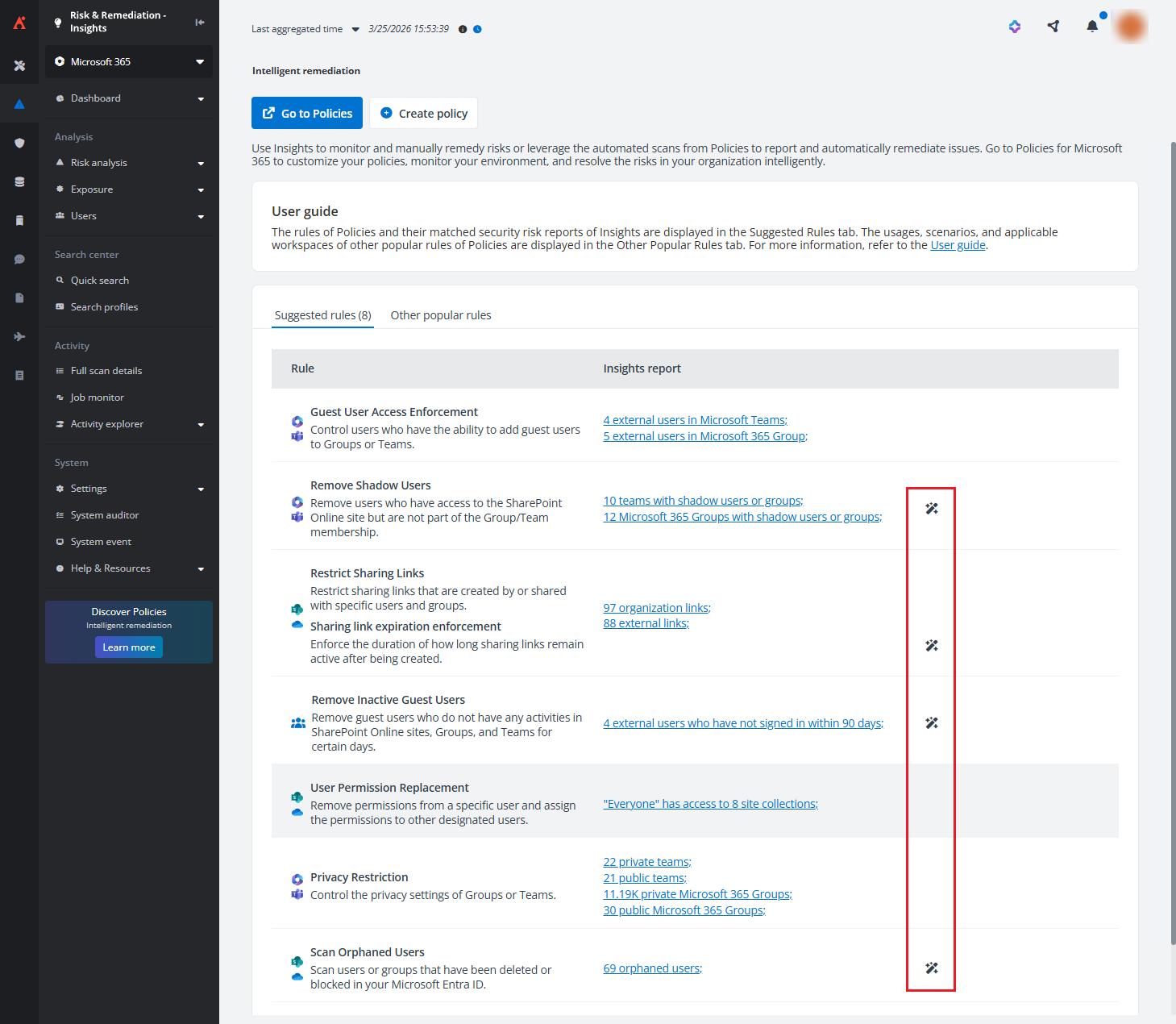
対応するルール設定の構成後、[保存して実行] をクリックすると、Policies for Microsoft 365 にサインインせずにポリシーを直接実行することができます。
Policies の推奨ルールは、Insights でルールに一致するセキュリティ リスクが発見された場合に表示されます。
Policies for Microsoft 365 にサインインすることなく、Insights で直接ポリシーを作成するには、[ポリシーの作成] をクリックします。
- Insights と Policies for Microsoft 365 の両方のサービス管理者
- Insights と Policies for Microsoft 365 の両方のサブスクリプションを持っている
ポリシーの作成 ページで、以下の設定を構成します。
-
ドロップダウン リストからオブジェクト タイプを選択します。ポリシーの名前と説明 (説明は必須ではありません) を入力します。
-
[次へ] をクリックして次のステップに移動します。
-
ルール ステップで、[ルールの追加] をクリックします。画面右側に表示されるウィンドウで、ポリシーに追加するルールを選択します。この特定ルールの構成ページが表示されます。特定のルールを検索するには、検索テキスト ボックスにルール名を入力して、推奨リストからルールを選択します。
-
ルール設定を構成し、[ポリシーに追加] をクリックします。ルールの追加後、該当するルール名の横にある歯車ボタンをクリックすることで、ルールの設定を更新することができます。
-
[次へ] をクリックして次のステップに移動します。
-
ポリシーの割り当て ステップで、Insights の構成済みデータ範囲内のすべてのコンテナーが表示されます。ポリシーを割り当てるコンテナーを選択し、[次へ] をクリックします。特定のオブジェクトにのみこのポリシーを適用するには、フィルターのドロップダウン リストから既存のフィルターを選択するか、[新規] をクリックして新しいフィルターを作成できます。
-
スケジュール ステップで、スキャン スケジュールと保持期間設定を構成します。
-
スキャン間隔 – 正の整数を入力し、時間単位 (時間、日間、週間、か月間) を選択します。Policies for Microsoft 365 は現在のポリシーの ポリシーの強制 ジョブを開始し、構成した間隔に従って Microsoft 365 環境をスキャンします。
NOTEスキャン間隔 ドロップダウン リストから 時間 を選択することが可能になりました。これにより、日単位よりも早く違反を検出することができます。最短のスキャン間隔は、2 時間 です。
-
スキャンの開始時間 – スキャン間隔が 日間、週間、または か月間 に設定されている場合、ジョブ実行の正確な時間を指定できる スキャンの開始時間 設定が表示されます。
-
保持期間 – 正の整数を入力し、現在のポリシーに関連付けられているデータを保持する日数を定義します。保持期間が過ぎると、違反の詳細とジョブの詳細が Policy for Microsoft 365 から削除されます。
-
-
[次へ] をクリックして、確認 ステップに移動します。
-
構成した設定を確認します。いずれかのステップ内の情報を更新する場合、その他ステップの 編集 ボタンをクリックして更新します。
-
[公開] をクリックして、ポリシーを Policies for Microsoft 365 に公開します。ポリシーの強制 ジョブは、構成したスキャンの開始時間に基づいて開始されます。
または、[公開して実行] をクリックしてポリシーを発行し、ポリシーの強制 ジョブをただちに実行します。Policies for Microsoft 365 > ジョブ モニター に移動して、ジョブ詳細を確認することができます。
ポリシーの構成に関する詳細については、サービス レベルのポリシー を参照してください。
その他の人気のあるルール タブで、既定では 8 件の Policies のルールが表示されます。ルール名、ルールの説明、シナリオ、ルールを追加できるオブジェクト タイプを表示することができます。
Policies for Microsoft 365 のポリシーを使用して、セキュリティ リスクを修復することができます。[Polices へ移動] をクリックして、新しいブラウザー タブで Policies for Microsoft 365 を開きます。
Policies for Microsoft 365 にアクセスする前に、有効なサブスクリプションを持っていることを確認してください。サブスクリプションを取得する場合、AvePoint アカウント マネージャーまでお問い合わせください。Policies for Microsoft 365 の詳細については、Policies for Microsoft 365 ユーザー ガイド を参照してください。
Insights バージョン: インサイダー バージョンと本番バージョン
Insights には、プレビュー機能のバージョンと一般的に利用できる機能のバージョンの 2 種類が存在します。
インサイダー バージョンは、新しい製品機能が本番テナントで利用可能になる前に、機能の確認およびテストを実行するユーザーに向けて作成されたものです。Insights for Microsoft 365 インサイダー プログラムに参加する場合は、AvePoint アカウント マネージャーに連絡してサブスクリプションを購入してください。Insights for Microsoft 365 インサイダー環境にアクセスする準備ができている場合、非本番環境の Microsoft 365 テナントが存在することを確認して、インサイダー環境でこのテスト テナントを使用します。
本ガイドでは、インサイダー環境の機能も、本番環境の機能も紹介します。この 2 つの環境間の相違点については、以下の表を参照してください。
| インサイダー環境 | 本番環境 | |
|---|---|---|
| サインイン アドレス | https://insider.avepointonlineservices.com | https://www.avepointonlineservices.com |
| サインイン方法 | ローカル アカウントMicrosoft 365 アカウントでサインイン | 次のアカウントでサインイン:ローカル アカウントMicrosoft 365 アカウントSalesforce アカウントGoogle アカウント |
| 対応しているデータ センター | 米国東部 (バージニア)北ヨーロッパ (アイルランド) | オーストラリア南東部 (ビクトリア州)カナダ中部 (トロント)米国東部 (バージニア)フランス中部 (パリ)ドイツ中西部 (フランクフルト)西日本 (大阪)韓国中部 (ソウル)北ヨーロッパ (アイルランド)東南アジア (シンガポール)スイス北部 (チューリッヒ)英国南部 (ロンドン)西ヨーロッパ (オランダ) のデータ センターに対応します。 |
Elements 管理
Elements を使用して Insights を管理する場合、Insights の既存の設定をテンプレートにエクスポートし、そのテンプレートを直接 Elements の他のテナントに適用することができます。この機能は、リスク定義の一貫性を簡素化し、パートナーによって管理されている環境のセットアップを加速します。
Elements でのテンプレートの管理手順については、Nitro の使用 を参照してください。
Ava との統合
Insights は、ご質問に関する説明や回答を提供するバーチャル アシスタントである Ava と統合されています。右上の Ava を呼ぶ ボタンをクリックして、Ava とチャットして情報を取得してみてください。
Confidence Platform サービスとの統合
AvePoint Insights は、利用可能なサブスクリプションを持っている Confidence Platform 内の複数のサービスとの統合に対応しています。
-
Cloud Backup for IaaS + PaaS – Insights を使用する開始前に、Microsoft Entra の監査ログとサインイン情報は Cloud Backup for IaaS + PaaS から同期できます。詳細情報については、Microsoft Entra アクティビティ ログ を参照してください。
-
Cloud Governance – Cloud Governance から対応するデータを取得して Insights に表示する設定を有効化することで、可視性およびデータ管理を強化することができます。詳細については、Cloud Governance 統合の設定 を参照してください。
-
Policies for Microsoft 365 – Insights は Policies for Microsoft 365 と統合することで、ポリシーの作成および直接 Insights でワンタイム ポリシー ジョブを実行することができます。ルール設定に合致するリンク共有、孤立したユーザー、非アクティブなゲスト ユーザー、およびシャドウ ユーザーを一括削除することができます。詳細については、Policies & Insights、概要レポート、共有リンク、外部ユーザー、および 孤立したユーザー を参照してください。
-
MyHub – Insights は MyHub との統合を提供し、ユーザーの責任範囲内の危険データをレポートする際のユーザー エクスペリエンスを向上させます。Microsoft 365 テナント ユーザーは、MyHub で自分のワークスペース内の危険情報を簡単かつ効率的に管理することができます。MyHub 詳細情報については、MyHub ユーザー ガイド を参照してください。
-
AgentPulse - Insights は AgentPulse との統合により、Copilot Studio エージェント、SharePoint エージェント、Microsoft Foundry エージェント、および Microsoft 365 エージェントの潜在的なリスクを分析します。詳細については、エージェント レポート を参照してください。
Google のデータ セキュリティと管理
Google のマルチクラウド セキュリティ プラットフォームは、AvePoint のデータ保護技術をシームレスに統合し、堅牢でスケーラブルなソリューションを提供します。このプラットフォームにより、Google Workspace と Google Cloud のデータを完全に管理・ガバナンス・保護することができます。
-
Google データの完全保護 – Google Workspace、ディレクトリ、Classroom のデータを安全に保護し、迅速にリストアするには、Cloud Backup for Google Workspace を利用してください。このソリューションにより、データの損失を防止し、ビジネスの継続性を確保することができます。詳細については、Cloud Backup for Google Workspace ユーザー ガイド を参照してください。
-
プロアクティブなリスク インテリジェンス – Google Workspace 全体のプロアクティブなリスク インテリジェンスを取得して潜在的な脅威を事前に発見するには、Insights を利用してください。Google Workspace の権限・メンバーシップ・共有に関する制御を簡単に特定・優先順位付け・修正することで、セキュリティの負担を軽減し、強力なデータ セキュリティ インサイトを取得することができます。また、Google の DLP エンジンを活用して、より詳細な秘密度スキャン・リスク監視・データ漏洩防止を、よりスマートな権限制御を通じて実現します。詳細については、このユーザー ガイドを参照してください。
-
情報ライフサイクル全体の管理 – 情報ライフサイクルの完全な管理を実現し、Google Workspace 全体でシームレスかつ効率的なコンテンツ管理を体験するには、Opus を利用してください。レコードを一元的に管理・制御することにより、運用効率の向上、コンプライアンスの準拠、情報ガバナンス プロセスの合理化を可能にします。非アクティブ データや ROT データ (重複データ、レガシ データ、不要なデータ) を検出して分類し、詳細な分析で生産性を向上させ、保持するデータと削除するデータをより賢明に決定することができます。詳細については、AvePoint Opus ユーザー ガイド を参照してください。
-
モダンで柔軟なワークスペースの構築 – データ サイロを解除してデータを統合し、ワークスペースを移行するには、Fly を利用してください。このソリューションにより、最も複雑なデータ移行を簡素化し、弊社の Azure ホスト型 SaaS ソリューションを活用して Google Workspace のワークロード移行またはテナントの再構築を実行することで、データのモダン化と移行を可能にします。詳細情報については、Fly ユーザー ガイド を参照してください。
-
信頼性の高い Google VM セーフガード – Google VM インスタンスおよび Google Cloud Storage バケットの堅牢なデータ保護を実現し、データの安全なバックアップと迅速なリストアを保証するには、Cloud Backup for IaaS + PaaS を利用してください。柔軟なモード オプションで多様な運用ニーズに対応します。SaaS インフラストラクチャ モードを活用して集中型のポリシー駆動保護を実現します。または、CAP ゲートウェイ モードを選択してネットワーク遅延を最小限に抑え、バックアップ パフォーマンスを向上させます。詳細については、Cloud Backup for IaaS + PaaS ユーザー ガイド を参照してください。
これらの機能は、Google Workspace およびクラウド環境のセキュリティ・管理・効率を向上させ、データ保護とスムーズな操作を可能にします。